

[vc_row][vc_column width=”3/4″][vc_column_text]
This Step-by-Step Guide will Show You How To:
-
Upload your files to a Dropbox folder.
-
Share your Dropbox folder with anyone, anywhere, anytime.
[/vc_column_text][/vc_column][vc_column width=”1/4″][milestone symbol_position=”after” color=”Accent-Color” number=”2″ subject=”Minutes to Complete”][/vc_column][/vc_row][vc_row][vc_column width=”1/1″][vc_column_text]Dropbox is one of the easiest and most useful ways to store and share your files, including photos and videos. It not only allows you to upload and share single files, but you can also choose to share an entire folder with someone else. This means that you can setup a unique folder to share with your co-worker or team, and then anything that you upload into that folder will be accessible by those that you shared the folder with. Here’s a step-by-step guide, showing how easy it is to do:
How to Share Files on Dropbox
1. Login to Dropbox.
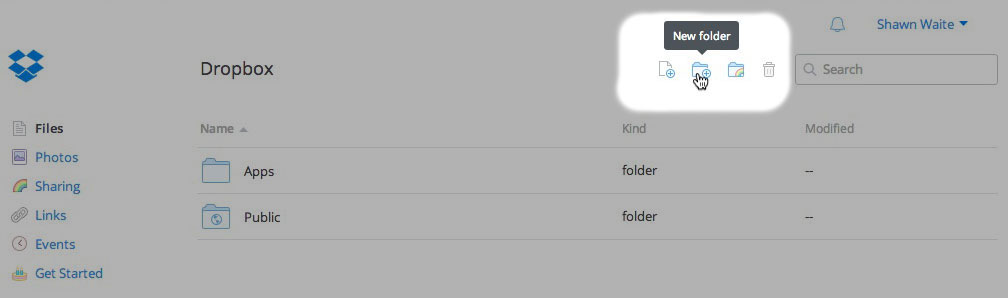
2. Click on the icon along the top of the window for “New folder”.
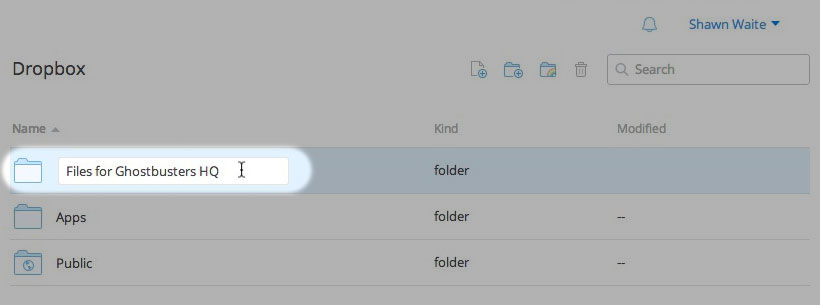
3. Name the folder something unique, such as “Files for Ghostbusters HQ”.
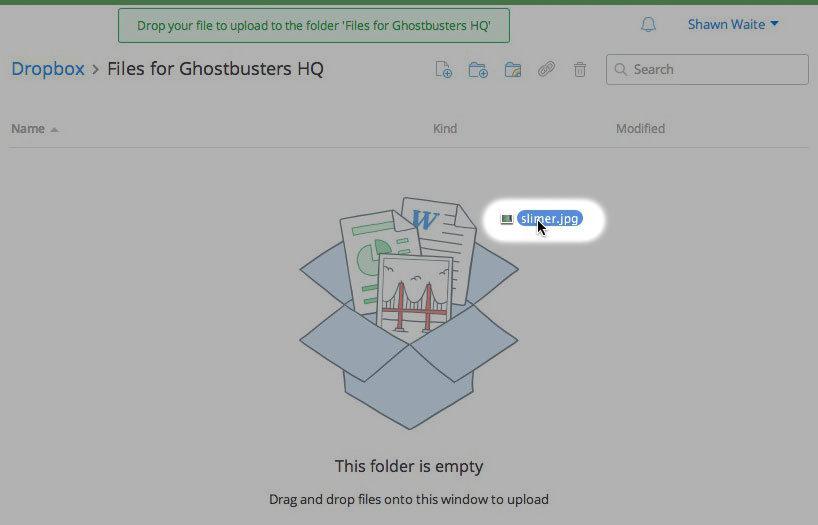
4. Click on the newly created “Files for Ghostbusters HQ” folder.
5. To upload files, do one of the following:
- Simply drag and drop the files onto the window as instructed.
- Click on the icon along the top of the window for “Upload…”
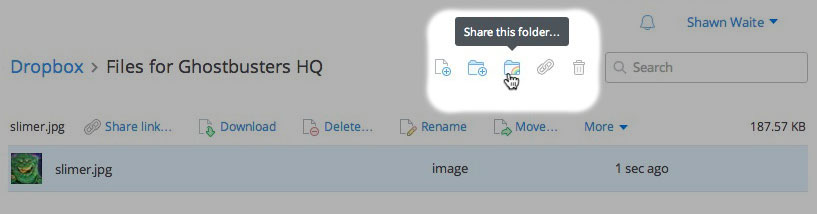
6. To share the folder with the Ghostbusters HQ team, click on the icon along the top of the window for “Share this folder…”
7. In the window that appears, type the email address for each person you’d like to share the folder with into the field for “Invite members to this folder”.
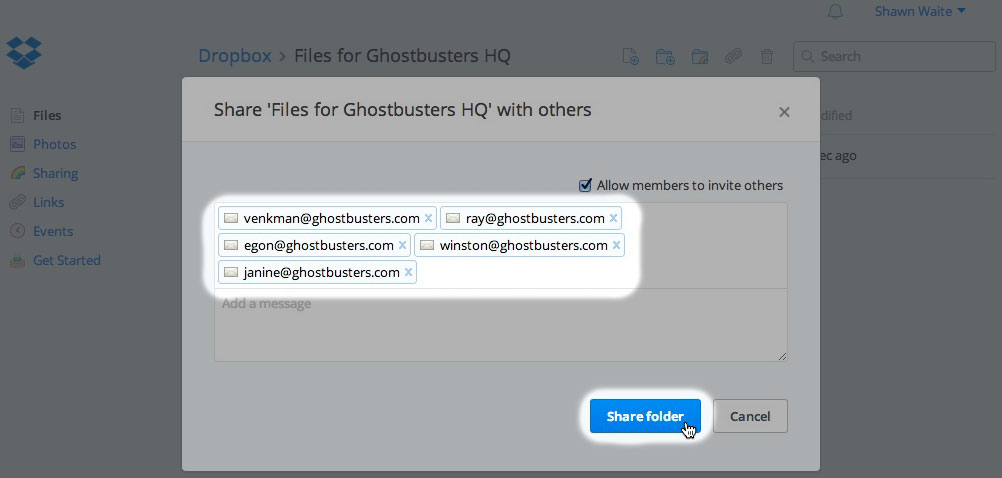
8. Click the “Share folder” button.
That’s it! You can now continue to upload files to the folder to share them. Enjoy using Dropbox![/vc_column_text][/vc_column][/vc_row]